Liquidninja

Archive for the ‘technology’ Category

Metapad Power Tips

Tuesday, July 5th, 2011


This post describes five of my favorite, yet perhaps nonobvious, power tools within Metapad. They are: Portability Mode, Quick Buffers, Launching Viewers, Quote & Un-quote and Unwrap Lines & Commit Word Wrap.

If you’re a casual or power user of Metapad I hope this article teaches you at least one new trick that you can use to make your text editing more productive.


1. Portability Mode (a.k.a. INI mode)

The newest feature in Metapad is actually fairly hidden — for better or worse. It’s called portability mode and it allows you to save all of your Metapad preferences in a local file (called metapad.ini) rather than in the Windows Registry. This is very handy when you’re moving Metapad around on a thumb drive or if you want to re-install Windows. Even better: you can sync your Metapad settings across multiple computers with Dropbox — just run metapad.exe and metapad.ini within a folder in your Dropbox (it will take up about 0.01% of a free 2GB account).

As a convenience, I added a little feature in Metapad 3.6 that will allow you to migrate your Metapad settings from the Registry into the metapad.ini file. Just type “metapad /m”, as in the following screencap, at the command prompt:

Migrating to INI mode via command prompt


2. Quick Buffers

Quick Buffers are like having 10 extra independent clipboards to work with. You can set their contents using the Settings dialog (see image) or by selecting some text and using shortcut keys (Alt + Shift + [Number 0-9]). You can “paste” their contents into your Metapad files by pressing Alt and the number key corresponding to that Quick Buffer.

Editing Quick Buffers in Settings


(I’m surprised that more text editors don’t have a simlar feature.)


3. Launching Viewers

There are 4 different commands that launch things from within Metapad.

First is a new Metapad window (or instance, hence the ‘i’ in Ctrl+I for the keyboard shortcut). This is different than New File (Ctrl+N), which clears out the current file and starts an empty one. New Window will also create an empty file but will keep your existing file around in the background.

Launching viewers from the menu


The next two commands are for launching the primary and secondary viewers, corresponding to the “1″ and “2″ toolbar buttons (or use keyboard shortcuts Ctrl+L and Ctrl+J). These viewers are customizable and can be set to run any other program installed on your box. Metapad will pass the current file you’re viewing or editing to those programs. Set the paths to these viewers in the General Settings tab. Common uses are setting web browsers to view your web content (e.g., one for Firefox and the other for IE) or beefier editors that take longer to load but may offer features that Metapad does not.

Lastly, there is the “Default viewer” (Ctrl+D). This will open the program that has been associated with the current document’s file type (or extension). For example, if your computer’s default web browser is Chrome, you could launch the current HTML file you’re editing in Chrome with Ctrl+D and keep the other two external viewers (the primary and secondary) associated with two different browsers — say Firefox and IE as in the example above.


4. Quote and “Un-quote”

There are a number of handy text manipulation tools under the Edit | Convert Selected and Edit | Block menus, where a block refers to one or more lines of text that have been selected prior to using those commands. The following two commands in the Block menu are fairly unique to Metapad and may not be familiar to many folks.

The Quote command (Alt+Q) allows you to prefix each line in the block with a certain customizable string. The default quote string, editable in Settings, is “> ” which, once long ago, was commonly used to indicate lines in an original email that was being replied to. Quote can be used for other things, for example the string “    * ”, could be used to instantly bullet-up a list.

Setting the Quote string


When I added Quote, I also wanted a corresponding “unquote”, which is what the Strip First Character feature (Alt+Z) can be thought of as. This will delete the first character on each line of the selected block. Strip can be very handy for cleaning up things such as code copied from the web that has embedded line numbers.


5. Unwrap lines & Commit word wrap

Lastly we have another pair of tools that I believe is unique to Metapad (at least it was for many moons).

Unwrap Lines (F9) will take a file that has embedded carriage returns (i.e., new lines) and strips them all out. An alternate version Unwrap Lines w/ Space (Alt+F9) will replace carriage returns with a space to ensure wrapped words don’t get improperly joined. Running either of these effectively leaves you with one, potentially really long, line. (Aside: these effects can also be done using the basic (stressed: basic) regex support in the Replace dialog if you are so programmatically inclined).

Wrapping and unwrapping via menu commands


Having one really long line usually isn’t so nice unless you turn on Word wrap mode (Ctrl+W or toolbar button). With wrap enabled, your document text will automatically fit the Metapad window, no matter what its line-length. Once in this mode, you are now able to run the complementary Commit Word Wrap (Ctrl+F9) which looks at how the document is auto-wrapped and sticks in carriage returns in the right spots so that each line’s wrapping is persisted, regardless of how wide the window is.

For example, say you have a document full of writing that has a bunch of lines, each no longer than 60 characters. To make each line at most 80 characters long, you would first ensure Word wrap is on (Ctrl+W if not), then Select All (Ctrl+A), Unwrap Lines (F9), resize the window so that each line is no longer than 80 characters (move your carret and watch the toolbar) and then finally do Commit Word Wrap (Ctrl+F9).


I hope these tips are at least a little enlightening. They were fun for me to remember and write about.

Announcing Metapad 3.6

Thursday, December 23rd, 2010

I am proud to announce a new version of Metapad: 3.6. This release arrives almost 9 years since the last feature release!

Download Metapad 3.6 here

So, what’s in it?

Metapad 3.6 has: a new high resolution app icon, UI & usability updates, a new feature that remembers folders across sessions, better defaults for general settings, UTF-8 file support and the biggest new feature: portability mode.

What is ‘portability mode’?

Portability mode allows Metapad to properly run and save settings on an external or thumb drive and it will not leave any trace on a friend or family member’s system. This is also very useful when you are setting up an additional computer or migrating to a new one – copy over your Metapad directory and simply pick up where you left off.

A glimpse at metapad.ini

Technically portability mode means that all settings, window attributes, menu options, find/replace and recent file histories are stored and loaded in a local text file called metapad.ini (instead of the Windows Registry.) To enter this mode simply ensure that a file named metapad.ini exists where metapad.exe does – or use the one time command line option /m to migrate all your registry settings over.

Cool. So why wait almost 9 years till a new feature update?

About a year ago, after I released the Metapad source code, a fellow named David Millis sent me a code patch with a new feature he wrote for UTF-8 file support. This inspired me to get the code up and running again but I still wasn’t sure that I would get around to releasing a new version.

Then when Windows 7 came out at the end of 2009 and I played around with it I was a little irritated by how shoddy the Metapad icon looked in the task bar (due to the lower resolution scaling up poorly).

Windows 7 taskbar scales Metapad's icon poorly

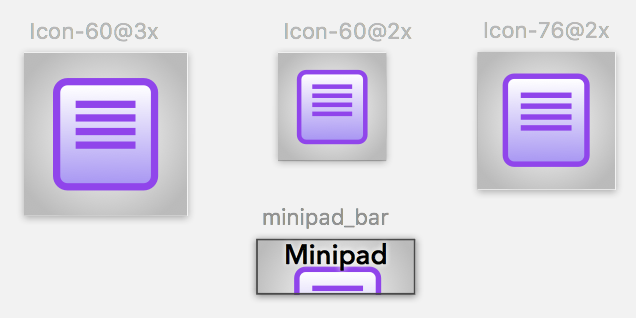
That feeling inspired me to refresh the icon which was lots of fun. Once that was done I knew a release was forthcoming so I slowly added the other features in my meagre spare time through 2010.

Why is 3.6 twice the size of 3.5?

Thats entirely due to the updated icon. Metapad’s new icon is almost 100 KB which makes the compressed download about 100 KB instead of about 50 KB. But hey, we’re still talking about kilobytes, here – not megas or gigas.

Future proofing Metapad with a massive icon

How did you make the new icon?

I used a neat little app called Opacity for the bulk of the design. I then used the slick tool IcoFX to clean up the pixels on the various size and color palette variations.

Progression of Metapad icon with early 3.6 concept


Wait, isnt Opacity a Mac app?

Yes and 3.6 was mostly developed on a Mac using Parallels to run a virtual Windows 7 machine.

Weird. Will 3.5 language translations work in 3.6?

For the most part, yes although you won’t see the new UTF-8 menu item and some of the settings dialog usability improvements. You will also get a warning upon startup which you can disable via command line option /s (and you might want to stick that into a shortcut to avoid typing it each time at the command prompt.)

What was the hardest part for development?

First, getting Dev-C++ to generate a small binary or one that used the latest common control visual styles (I eventually gave up). Then getting Visual C++ to generate a binary that actually worked on Windows XP without an additional DLL.

What changes are in the beta releases?

Beta 2 was posted on Feb 26, 2011:

  • Fixed “Randal Munroe bug” where Shift+Enter inserted invalid newlines (thanks to Curtis Bright)
  • Fixed Metapad 3.6 not loading on Windows 2000 or Windows 98
  • Fixed INI mode leading/trailing spaces bug for quote string, find/replace history and quick buffers
  • Updated external viewer toolbar icons with numbers for better usability (idea from Gerard Juan)


Beta 3 was posted on Mar 9, 2011:

  • Open/save folder is remembered across launches with option to disable (thanks Paolo)


Beta 4 was posted on Mar 12, 2011:

  • Fixed bug where “save options menu” wasn’t persisting in settings dialog
  • Fixed convert to Title Case bug where apostrophes counted as word boundaries


Beta 5 was posted on Mar 26, 2011:

  • Minor visual refresh to the toolbar buttons

How can I provide my feedback?

Please email “metapad-feedback” at this domain, liquidninja.com. Thanks!

Check out the Metapad homepage for more details and the Metapad twitter feed for news.

Deploying with Git

Wednesday, November 3rd, 2010

Git, a powerful version tracker, is easily becoming one of my essential software tools. I now use it on every creative project at home and increasingly at work too.

But you might say “I get versioning automatically with Time Machine or Dropbox”. Sure and that’s nice but when you consciously manage versions yourself you can track simultaneous changes across multiple files and you get comments on each version to help you know what changed when. You might say “I already have decent version tracking at work with Subversion/Perforce/CVS”. Well you can still get a great benefit by running Git locally — think of it as a layer of private versioning on top of the shared, published repository.

Although Git’s known as an SCM, or source code manager, Git is also useful for non-coding projects such as graphic art, music, spreadsheets or word processing — things built using tools that typically have no native version management (other than undo and save as). Initializing a new Git repository takes only a couple seconds (!) and tearing one down is just as quick (“rm -rf .git”).

So, deploying?

Okay, we’ve established that Git is awesome but one of my favorite uses of Git is to utilize its distributed nature to maintain and deploy website files. Before I get into the techie details on setting this up, let me explain the benefits of this technique.

Typically, website files exist on a local machine (e.g., laptop) and on a server (e.g., your hosting provider) and one would edit changes locally and then (testing locally is optional) FTP the files to the server. This process is error prone — for example you might forget to transfer one of the files or, even worse, make emergency changes on the server and never make the change locally and later overwrite those server changes, losing them forever.

By using Git and the technique outlined below, you will still have two copies of the files but the synchronization is much simpler. Primary benefits include:

  • You deploy the site by simply typing git push on the local box (or through a visual tool, more on those at the end)
  • Edits made on the remote host can be synchronized locally via git pull
  • After a bad push, roll back by running git reset –hard ORIG_HEAD on the remote host
  • Oh yeah, if they weren’t already, all your website files are now version controlled. Awesome!

How to set your site up with Git

First, if they aren’t already, stick your local website files are in a Git repository.

git init; git add .; git commit -m "Initial import"

(Read a good Git tutorial for more on these commands and how to use Git day-to-day.)

Then, FTP (or scp) the hidden “.git” directory that was created by those commands to the server in the corresponding location in your files (assuming they’re already on the remote host — otherwise send everything over including “.git”).

Next, add the remote host config to the local repository:

git remote add prod ssh://user@example.com/path/to/site

Now, to make a push result in updated files on the remote host (as opposed to only an updated repository record) replace the remote’s .git/hooks/post-update file with a copy of the hook script linked to in this FAQ entry.

Then, to eliminate a warning that Git spits out add the following to the server side .git/config:

[receive]
    denyCurrentBranch = ignore

An optional but recommended step is to set up passwordless SSH to make things super fast and clean. It is also strongly recommended to ensure your server’s .git directory is not allowed to be viewed by anyone browsing your site (see htaccess or the equivalent for your webserver). Also you will want to configure the local repo’s default remote so that you can run “git push” or “git pull” without specifying any other parameters:

[branch "master"]
    remote = prod
    merge = refs/heads/master

Git Tools

If you’re on a Mac and you use TextMate, there is a decent Git bundle that you can add in. (I don’t love the flow but it works.) Also, GitX is a nice graphical UI for Git on OS X. On Windows I’ve enjoyed using Git Extensions. And lastly, here is a nice Git cheat sheet with some more advanced stuff in it.

List of Awesome

Sunday, June 6th, 2010

The following are some techy things that I currently think are, well, awesome. Either things that consistently put a smile on my face or just keep me regularly stimulated. (Note: the order is random.)

Instapaper

Marco Arment’s software product is actually a combination of a website, a bookmarklet and a stellar iPhone/iPad app. If you prefer to do your medium-form reading (e.g., news articles, blog posts) in a more controlled and focused manner this tool is definitely for you. For me it also acts as a general purpose cross-platform and cross-app bookmarking platform. For example when I’m reading Twitterrific on the iPhone and I see a link to something that I’d rather view on a bigger screen I simply add it to Instapaper. Similarly for NetNewsWire and probably many more mobile apps.


Daring Fireball

John Gruber’s professionally curated blog is my current favorite. It has a notable Apple focus but with plenty of general tech and hints of various other things that he finds interesting. You might think the somewhat scattered focus could make for a challenging daily read but the man has tastes that I (and likely many other readers) share.


Netflix & Blu-ray

This combo delivers 95% of my movie watching right now and although I don’t watch as many as I’d like, movies are easily one of my favorite ways to relax. The Netflix plan with 3 discs at a time seems about the right number for us right now so we haven’t really needed to delve into the streaming aspect of Netflix. Blu-ray on a big HDTV is absolutely awesome and can even make a lousy film enjoyable (e.g., if the cinematography is worthy even though the dialogue or plot sorta stinks.)


jQuery

This front-end web development technology is very powerful and surprisingly revolutionary. jQuery’s an add-on library developed by John Resig that extends the power of the web browser’s scripting language (Javascript) and data model (HTML DOM). Rarely is a library met with such enthusiasm by the web developer community. The programming style (use of CSS-style selectors) takes a bit of getting used to but results in no looking back.


iPhone & iPad

Few would not admit that Apple is at the top of their game and these two products are their flagships. From the (controlled) leaks, to the product keynotes, to the release day shipping and beyond, these are easily the most exciting and dramatic consumer technologies available right now. When I started building this list, the iPad was a new acquisition and I wasn’t sure how much I’d love it. Well, I absolutely do — it simply feels great to use and is amazingly conducive to casual computing.


Twitter

I must admit that for random, bite-sized reading entertainment and discovery Twitter is outstanding — once you put some work into figuring out exactly who to follow. My preferred twitter client is IconFactory’s Twitterrific for the iPhone. I love this app because it: a) Saves exactly where I was reading last, b) has a beautiful dark theme optimized for reading in low light, and c) integrates with Instapaper. I consider these all essential. I use the free version that has ads, not because I don’t want to shell out (I’ve paid for MANY worthy iPhone OS apps) but because I find the ads (provided by The Deck) interesting and not intrusive.


Hulu

There are a few shows that I like (e.g., The Office, Community) and Hulu, hooked up to the TV by way of MacBook, definitely does the trick. I love the Hulu app (Mac/PC) which has a streamlined interface that remembers your video quality preference and works wonderfully with an Apple Remote.


Amazon Fresh

Currently a Seattle only thing but oh, how awesome home delivered groceries are.


Windows 7 First Touch

Thursday, December 10th, 2009

WIN7LOGO

Although I’ve become a pretty strong Mac convert (both at home and at work), I recently took the opportunity to play around with Windows 7 for a few hours. Although Microsoft as a whole fails to impress me these days, there is still a small soft spot in my heart for Windows. I was especially interested to see what kind of user interface improvements were added to this version; Vista was pretty lacking in that department.

Immediate Thoughts

  • Installation was painless and quick
  • User Account Control doesn’t bother you every few mins. Woohoo!
  • For once, most of the built in themes look nice
  • Ugh… the sound effects are rather awful
  • Glad to see the widget sidebar go away (you can still add widgets anywhere)

The Taskbar

The new improved taskbar is easily the star of Windows 7′s UI — a much needed upgrade of an ancient feature.

Microsoft has obviously taken some cues from Apple as this new improved taskbar resembles the OS X dock in a number of (good) ways. The most obvious change is that running apps all show up as an icon without a title. Apps can be “pinned” so that they stay on the taskbar even when the app is not running. Running apps are each subtly highlighted. And you can (finally) reorder running apps by dragging them. Doesn’t this all sound familiar?

Win7's taskbar

Win7's taskbar

OS X's dock

OS X's dock

The smaller size of each app makes the taskbar better suited for running many apps at once. Also notice that windows that stack are visually represented (in the image above IE has two tabs open). Subtle yet effective!

I was quite impressed with the hover popup for Internet Explorer (see image below). This is arguably more intuitive than Snow Leopard’s exposé because you don’t need to click and hold — you just hover. And you can navigate right to a particular tab within that app (although it isn’t supported in Chrome or Firefox at the moment if ever).

taskbar

Taskbar app "tooltip"

Another minor but welcome Mac OS X influence to the Windows 7 taskbar is the monochrome system icons in the tray.

Win 7's monochrome system tray icons

Win 7's monochrome system tray icons

OS X's system menu icons

OS X's system menu icons

Other Stuff

The new Aero Snap is interesting. Basically dragging a window to the top of the screen will maximize it. Dragging it to the left or right edge of the screen will cause the window to take up that half of the screen. Dragging away restores the original size. I was worried that this feature would be cumbersome but in fact it works pretty well.

The usability key here is that it doesn’t trigger the snap when the window touches the screen edge. It happens when your mouse cursor hits the edge (and to make this “magic” more evident to the user the mouse pointer glows when the snap is triggered).

Aero Shake, where you shake a window with your mouse cursor to hide every other window, seems cheesy but might be useful for some people. I envision frustrated Grandmas shaking their entire laptops.

As a keyboard junky I really love the new window manipulation shortcuts, especially Windows + Up, Down, Left and Right to maximize, minimize or snap left and right.

I also appreciate a minor Alt + Tab improvement: if you pause for a moment everything other than the selected Alt+Tabbed app will fade away.

alt-tab

Alt+Tab now makes other windows transparent (simulated screencap)

Conclusion

Due to Microsoft’s long lackluster product track record I didn’t have much hope for Windows 7 but it actually feels pretty nice. Not nice enough to tempt me to switch away from my MacBook Pro running Snow Leopard. But easily nice enough for me to recommend it to friends and family who aren’t interested in Macs.

PS. And thanks to Microsoft’s blessing-and-curse of backwards compatibility, metapad seems to run flawlessly under Windows 7.